

Product Settings
Configure the settings on each inventory product that drive forecasting, replenishment, and supplier ordering in Profit Hawk.
Every inventory product in Profit Hawk has a set of configurable settings that control how demand is forecasted, when replenishment is triggered, and how supplier orders are calculated. You can edit these settings individually from the product detail view, or in bulk using the edit dialog or Excel import.
Accessing product settings
Click any product row on the Inventory > Products tab to open the product detail view. The product header at the top displays all configurable fields. Click any field to edit it inline.
You can also open the full product page by holding Ctrl (or Cmd on Mac) and clicking a product row. This opens the product in a new tab with more space for charts and tables.
Settings reference
Product name (nickname)
A human-readable name for the product. When you generate products, this is automatically set from your English-language listing title. You can change it to whatever makes sense for your team.
SKU
The primary SKU that identifies this product. Must be unique across all your products. This is used as the key when importing/exporting product settings via Excel.
Brand
The brand associated with this product. You can select an existing brand or create a new one. Brands are shared across your product catalog, so selecting "Acme" on one product makes it available for all others.
Status
Either Active or Archived.
- Active products are included in forecasting, replenishment recommendations, and the Inventory Overview table.
- Archived products are hidden from replenishment calculations. Use this for discontinued products or seasonal items you want to keep on record but exclude from active planning.
MOQ (Minimum Order Quantity)
The smallest number of units your supplier will accept per order. Profit Hawk uses this when calculating supplier order recommendations to ensure suggested quantities meet the minimum.
If you don't set an MOQ, Profit Hawk will recommend whatever quantity the replenishment math calls for, even if it's just a few units. Set this to avoid placing orders your supplier won't accept.
Case quantity
The number of units per case (or inner carton) when ordering from your supplier. Supplier order recommendations are rounded up to the nearest case quantity so you're always ordering full cases.
Pallet quantity
The number of units per pallet. Used for rounding supplier orders to full pallets when the order is large enough to make pallet-level rounding practical.
Days of stock (min / max)
These two values define the target inventory range for replenishment calculations:
- Min days of stock (default: 30 days): The floor. When projected inventory drops below this many days of supply, Profit Hawk triggers a replenishment recommendation.
- Max days of stock (default: 90 days): The ceiling. Replenishment recommendations aim to bring inventory up to this level, but not beyond it.
If you leave these fields empty, Profit Hawk uses the defaults of 30 and 90 days. You can customize them per product to account for long lead times, seasonal demand patterns, or storage cost constraints.
Velocity profile
Controls how Profit Hawk calculates sales velocity (average daily sales) for this product. The velocity profile determines how much weight is given to recent sales vs. historical data.
Four options are available:
| Profile | Behavior | Best for |
|---|---|---|
| Responsive | Reacts quickly to recent trend changes | Seasonal or fast-moving products where recent sales matter most |
| Balanced | Blends recent trends with long-term baseline | A good default for most products |
| Stable | Emphasizes long-term averages over short-term noise | Steady-demand products where you don't want a single slow week to change the forecast |
| Custom | Set your own weights for each time period | Advanced users who want full control |
The Sales Velocity table on the product detail page shows the calculated velocity for each time period (7, 14, 30, 60, 180, and 365 days) along with the weight applied to each.
If a product doesn't have enough sales history for a given time period, that period is automatically excluded from the velocity calculation and does not affect the forecast.
Primary keyword (seasonality)
Assigns a search keyword to the product for seasonal demand adjustment. Profit Hawk uses this keyword's seasonal search trends to adjust daily forecasts: weeks with higher search interest increase the forecast, while quieter weeks decrease it.
Choose a broad keyword that reflects the overall buying pattern for the product category. For example, "yoga mat" captures seasonality better than "extra thick blue yoga mat."
Lead times
Lead times define how long it takes to get inventory from your supplier to Amazon. They are broken down into stages:
| Stage | Description | Default |
|---|---|---|
| Production | Time for your supplier to manufacture the order | 20 days |
| Sea Freight | Transit time by ocean (used when shipping method is "Sea") | 20 days |
| Air Freight | Transit time by air (used when shipping method is "Air") | 10 days |
| Customs | Customs clearance time | 5 days |
| Ground | Domestic ground transport to the prep center or Amazon | 20 days |
| Prep | Labeling, inspection, and prep before check-in | 5 days |
You can toggle between Sea and Air shipping methods. The total lead time is calculated by summing the applicable stages. This total drives when Profit Hawk recommends placing supplier orders: it works backward from the projected stockout date by the total lead time to determine the "order by" date.
Editing settings in bulk
Using the edit dialog
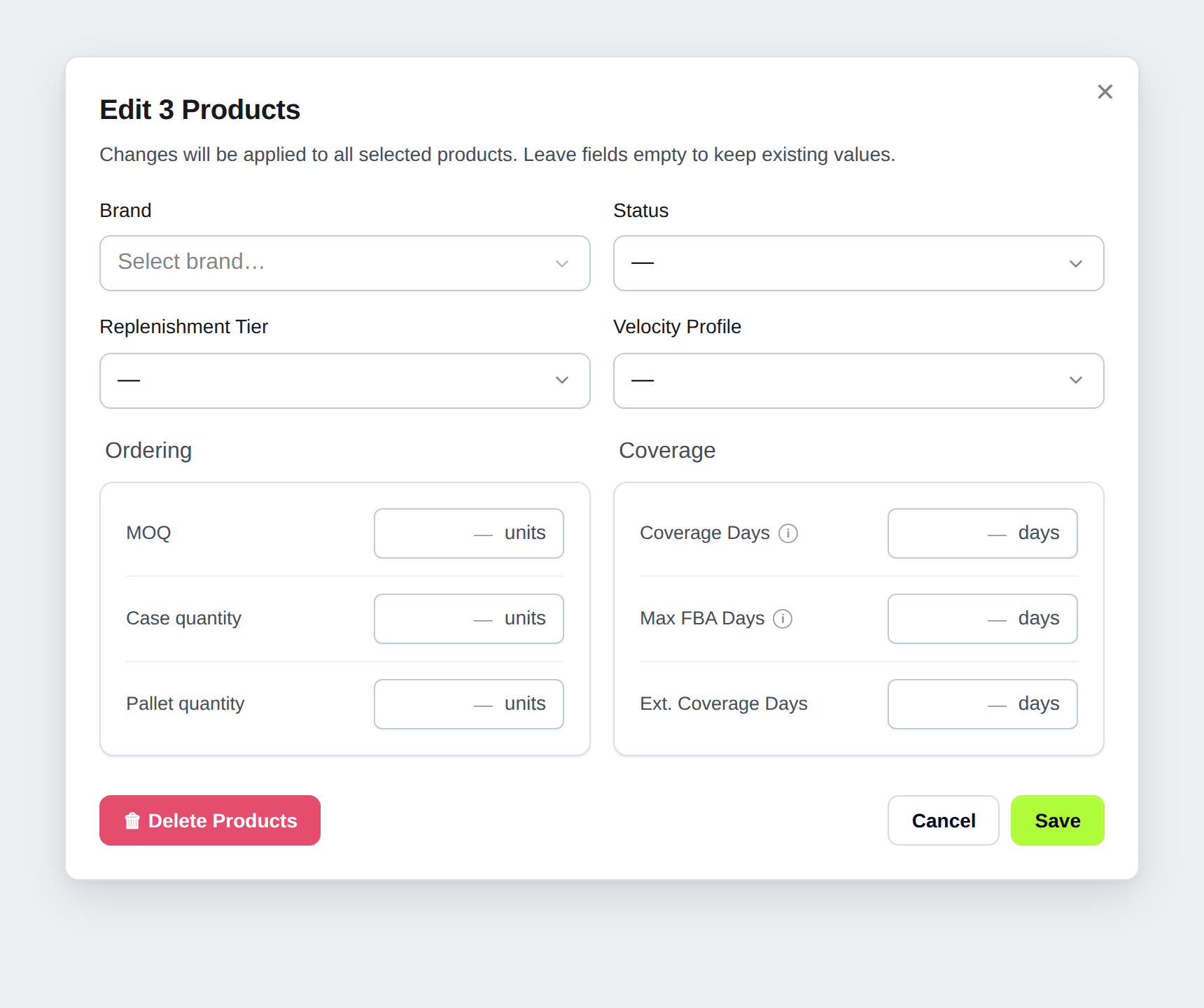
Select multiple products in the Products table using the checkboxes, then click Edit Products. The dialog applies your changes to every selected product at once, and any field you leave empty keeps each product's existing value, so you only change what you touch.
Select your products
Check the products you want to change on the Inventory > Products tab. The number you picked shows in the dialog title (for example, "Edit 3 Products").
Open the dialog
Click Edit Products in the toolbar to open the bulk edit dialog.
Fill in only what you want to change
Set the fields you want to update and leave the rest empty. Empty fields are never changed.
Save
Click Save. Profit Hawk applies the changes to every selected product and queues a forecast refresh so the updated settings flow into your reorder and transfer recommendations.
The dialog covers these settings:
- Brand and Status (Active or Archived).
- Replenishment Tier (A, B, or C). This sets each product's replenishment priority, which controls how large a safety-stock buffer Profit Hawk holds. Pick a single tier to apply it to the whole selection, or pick Use Profit Hawk recommendation to apply each product's own recommended tier instead. Products that do not have a recommendation yet are left unchanged. See Safety Stock for how the tiers change the buffer.
- Velocity Profile (Responsive, Balanced, or Stable), the same setting described under Velocity profile above.
- Ordering quantities: MOQ, Case quantity, and Pallet quantity.
- Coverage window: Coverage Days (how many days of sales each supplier order should cover), Max FBA Days (the most days of stock to keep at Amazon before transfer recommendations stop), and Ext. Coverage Days (days of coverage to hold in non-FBA storage, which includes AWD and any external warehouse). Together these set each product's days-of-stock targets across your FBA and non-FBA storage.
Coverage Days and Max FBA Days work as a pair. Enter both or leave both empty, and keep Max FBA Days below Coverage Days. Save stays disabled until the pair is valid.
Using Excel import/export
For larger bulk updates, use the Excel workflow:
- Go to Actions > Export Settings to download an XLSX file with all product settings.
- Edit the spreadsheet (change MOQ, days of stock, velocity profiles, the seasonality keyword, and more).
- Go to Actions > Import Settings to upload the modified file.
Profit Hawk shows a preview of what will change before applying, so you can review and confirm.
Which columns you need to keep
You do not have to keep every column in the exported file. Delete the columns you are not changing and keep only the ones you want to update. Any column you remove is left untouched, so each product keeps its current value for that setting. Column order does not matter either, because Profit Hawk matches columns by their header name, not their position.
Two rules apply:
- Always keep the SKU column. It is how Profit Hawk matches each row back to a product, so every import must include it.
- Keep grouped columns together. A few settings span several columns that only make sense as a complete set. Keep all of a group's columns, or remove the whole group. If you keep only part of a group, the import stops and tells you which columns are missing, so nothing is changed until you fix the file.
Two settings are column groups:
- Lead times: the Shipping Method column plus the six stage columns (Production Days, Sea Freight Days, Air Freight Days, Customs Days, Ground Days, and Prep Days).
- Custom velocity weights: the six Velocity Weight columns (7d, 14d, 30d, 60d, 180d, and 365d), which apply when a product's velocity profile is set to Custom.
Keep every column in a group, or delete them all. Keeping only some of a group's columns is the one edit an import will reject.
Setting the seasonality keyword in bulk
The export includes a Seasonality Keyword column, so you can set each product's primary keyword for seasonality in bulk. Type a keyword phrase to assign it, or clear the cell to remove a product's keyword. Extra spaces around the phrase are trimmed automatically, so a stray space will not stop the keyword from matching.
When a keyword is not recognized
Seasonality keywords come from a shared library, so a phrase you enter might not be in Profit Hawk yet. When that happens, the rest of that product's settings still import normally, and Profit Hawk lists the keywords it could not find. Click Request keywords to submit them for review. If the keyword has enough search history, Profit Hawk adds its seasonality data and it becomes available to assign to your products.
You'll be notified by email. Once your keyword request is reviewed, we email you at the address on your account with the outcome. Either the keyword is ready to assign to a product, or, if there was not enough search-volume data to build a reliable seasonality profile, we invite you to reply so we can suggest alternative keywords that fit your product.
The same export/import workflow is available separately for product costs under Actions > Export Costs / Import Costs.
Next steps
- Product Costs: Track landed costs per unit to enable profitability calculations
- Products: Overview of the Products page and how to manage your product catalog
- Replenishment Recommendations: See how these settings drive restock suggestions