

Products
Learn how to create and manage your company's inventory products in Profit Hawk, and connect them to your Amazon channel listings.
Products in Profit Hawk represent your company's actual inventory items, independent of where they're sold. Think of a product as "the thing you order from your supplier and ship to Amazon." Each product can be linked to one or more channel listings across your Amazon marketplaces (US, CA, UK, etc.), so all the sales data rolls up into a single view.
This separation matters because the same physical product often has listings in multiple marketplaces, each with its own SKU and ASIN. By grouping them under one product, Profit Hawk can give you consolidated demand forecasts, inventory projections, and replenishment recommendations.
Getting to the Products page
Go to Inventory in the left navigation. You'll see two tabs at the top: Products and Listings. The Products tab shows your inventory products. The Listings tab shows all the individual channel listings synced from your Amazon accounts.
Understanding the Products table
The Products table displays all your inventory products with key details at a glance:
- Product (nickname): A readable name for the product. This is auto-populated from your listing title when generated, and you can change it anytime.
- SKU: The primary SKU you use to identify this product.
- Brand: The brand associated with this product.
- Status: Either "Active" or "Archived." Only active products are included in forecasting and replenishment.
- MOQ: Minimum order quantity for supplier orders.
- Case Quantity: Units per case when ordering from your supplier.
- Pallet Quantity: Units per pallet.
- Days of Stock: Your target min/max days of stock for replenishment calculations.
Click any row to open the product detail drawer, where you can edit all fields and view linked channel listings, sales velocity, inventory levels, and replenishment projections.
Finding products
The toolbar above the table has a search box and a preset filter. Use them together or on their own.
Search
Search matches a product's name (nickname), SKU, brand, and status. It also matches the SKU and ASIN of any channel listing linked to the product, so you can paste a value straight out of Seller Central and land on the product it rolls up into, even when that product's own SKU is different.
Preset filters
Click the Preset dropdown next to the search box to narrow the table to a set of products. Each preset shows a count, so you can see how many products it covers before you pick it.
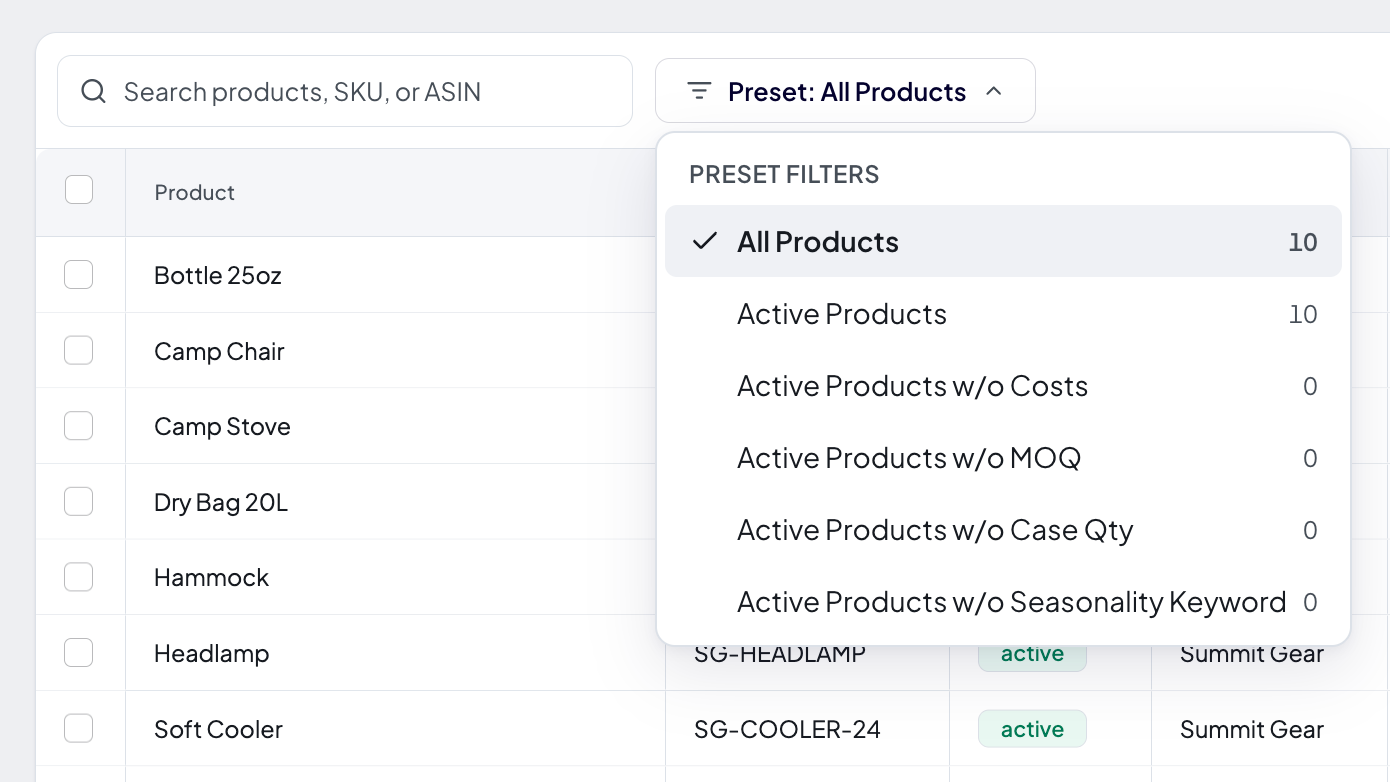
| Preset | Shows |
|---|---|
| All Products | Every product in your catalog |
| Active Products | Products with the status "Active," the ones included in forecasting and replenishment |
| Products Without Costs | Products that have no cost records yet |
| Products Without MOQ | Products with no minimum order quantity set, or set to zero |
| Products Without Case Pack | Products with no case quantity set, or set to zero |
| Products Without Seasonality Keyword | Products with no Primary Keyword set in the Seasonality section of the product detail |
The four "Without" presets exist to help you find gaps in your setup. A product missing costs cannot give you accurate profit numbers, and a product missing MOQ or case quantity gets supplier order quantities that ignore your supplier's ordering rules.
Presets filter your whole catalog, not just the rows currently on screen. The counts follow whatever you have typed in the search box, so the number beside a preset always matches what you get when you pick it.
Your selected preset is stored in the page URL, so you can bookmark a filtered view or share the link with a teammate.
Adding products
There are two ways to add products:
Generate Products (recommended for most sellers)
If you've already connected your Amazon account and your channel listings have synced, this is the fastest way to get started. Generate Products automatically creates inventory products from your channel listings by grouping them by ASIN.
See Generate Products for a full walkthrough.
Add a product manually
Use this when you need to create a product that doesn't have a channel listing yet, or when you want full control over the details from the start.
Open the Actions menu
On the Products tab, click the Actions dropdown in the top-right corner of the table.
Click Add Product
Select Add Product from the menu. A dialog opens with the product form.
Fill in the product details
- Product name: A readable name for this product (you can change it later).
- SKU: The primary SKU for this product. Must be unique across your products.
- Brand: Select an existing brand or type a new one to create it.
- Status: Defaults to "Active."
- MOQ, Case Quantity, Pallet Quantity: Optional. Set these if you know your supplier's ordering rules.
- Min/Max Days of Stock: Optional. Controls when replenishment recommendations trigger for this product.
Click Add Product
The product appears in your table. You can now link channel listings to it from the product detail view.
Linking channel listings to a product
After creating a product (manually or via Generate Products), you can connect it to your Amazon channel listings. This is what ties marketplace sales data to your inventory product.
Open the product
Click a product row to open the detail drawer.
Scroll to Channel Listings
The Channel Listings section shows all listings currently linked to this product.
Click Manage Channel Listings
Select the Amazon account you want to link listings from. The dialog shows all available listings for that account.
Select listings and submit
Check the listings that belong to this product, then click Submit. Repeat for each account if you sell on multiple marketplaces.
Generate Products handles linking automatically. If you used Generate Products, your listings are already linked by ASIN. You only need to manage links manually if you want to change the grouping.
Editing products in bulk
Select multiple products using the checkboxes in the table, then click Edit Products in the toolbar that appears. You can update brand, status, MOQ, case quantity, and pallet quantity across all selected products at once.
Importing and exporting product settings
For bulk updates beyond what the edit dialog supports, you can export your product settings to an Excel file, make changes in a spreadsheet, and import the file back.
- Export Settings: Actions > Export Settings. Downloads an XLSX file with all product fields.
- Import Settings: Actions > Import Settings. Upload a modified XLSX file to apply changes.
The same export/import flow is available for product costs (Actions > Export Costs / Import Costs).
Deleting products
Select the products you want to remove, click Edit Products, then click Delete Products at the bottom of the dialog. Products that are part of an active restock plan cannot be deleted until they are removed from the plan.
Deleting a product unlinks all associated channel listings and removes the product's configuration (costs, lead times, velocity settings). This cannot be undone.
Next steps
- Generate Products: Automatically create products from your channel listings
- Inventory Overview: See consolidated inventory data across all your products
- How Forecasting Works: Understand how Profit Hawk forecasts demand for your products