

Forecast Settings
Set your default stock coverage, choose whether MCF orders count toward demand, and tell Profit Hawk how Amazon fulfills your cross-border orders.
Forecast Settings is where you tell Profit Hawk how much stock you want to carry and how Amazon actually fulfills your orders. Everything on this page feeds your demand forecast and the reorder and transfer quantities you see on the Inventory Overview.
To open it, click Settings in the sidebar and choose Forecast Settings.
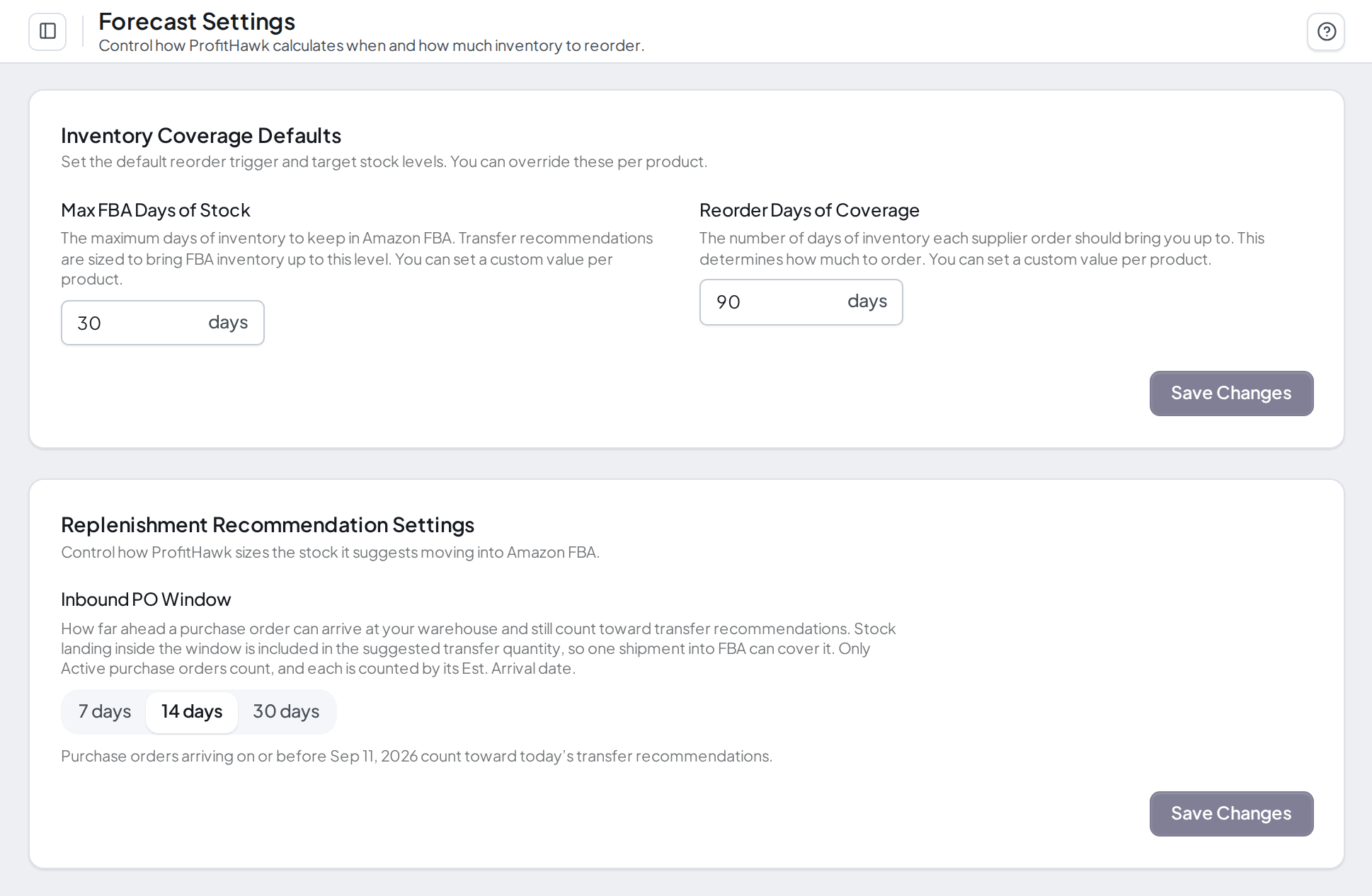
Inventory Coverage Defaults
These two numbers set how much stock Profit Hawk aims for across your whole catalog. You can override either one on any individual product.
| Field | What it controls |
|---|---|
| Max FBA Days of Stock | The maximum days of inventory to keep in Amazon FBA. Transfer recommendations are sized to bring your FBA inventory up to this level. |
| Reorder Days of Coverage | The number of days of inventory each supplier order should bring you up to. This determines how much to order. |
Both fields take a whole number of days from 1 to 365, and Max FBA Days of Stock must be lower than Reorder Days of Coverage. If you enter a pair that breaks that rule, the page tells you before it saves.
Open Forecast Settings
Click Settings in the sidebar, then Forecast Settings. The Inventory Coverage Defaults section is at the top of the page.
Enter your two defaults
Type the number of days into Max FBA Days of Stock and Reorder Days of Coverage. Keep the first number lower than the second.
Save
Click Save Changes. The button stays greyed out until you actually change a value, so if it is not clickable, nothing has been edited yet. A confirmation appears once the new defaults are stored.
Saving these defaults does not recompute your forecasts by itself. To see updated numbers straight away, click Refresh Forecasts on the Inventory Overview toolbar. Otherwise they are picked up on the next scheduled recompute.
To set different numbers for one product rather than your whole catalog, see Product Settings.
Replenishment Recommendation Settings
This section controls how transfer recommendations treat stock that is on its way to a warehouse but has not landed yet.
Inbound PO Window
A transfer recommendation used to be capped by what a warehouse holds today. A purchase order arriving in nine days counted for nothing until the day it checked in, so the suggested quantity was either too small now or too small next week, and you had to hold the inbound schedule in your head.
The Inbound PO Window is how far ahead a purchase order may land at a warehouse and still count toward that warehouse's transfer recommendation. Set it to 7, 14, or 30 days. The default is 14.
| Window | Good fit when |
|---|---|
| 7 days | You transfer often and want recommendations built almost entirely on stock you can ship this week |
| 14 days | The default. A middle ground for most sellers. |
| 30 days | Your transfers are less frequent, or your inbound shipments are large and worth planning around well in advance |
Under the control, Profit Hawk shows the calendar date the window currently closes, so "14 days" reads as the actual day a purchase order has to arrive by.
Open Forecast Settings
Click Settings in the sidebar, then Forecast Settings. Replenishment Recommendation Settings sits just below Inventory Coverage Defaults.
Choose your window
Click 7 days, 14 days, or 30 days. The date below the control updates as you choose, showing when that window closes.
Save
Click Save Changes. The button stays greyed out until you pick a different value.
Saving this one does start a forecast recompute on its own, because the window decides which purchase orders count toward every transfer recommendation in your account. You do not need to click Refresh Forecasts afterwards.
This is an account-wide setting. There is no per-product override, and the Inventory Overview shows the current window as a read-only note under the table so you can see which window a recommendation was built with without leaving the page.
Only Active purchase orders count. A draft you are still planning is not supply, so it never inflates a transfer recommendation.
To see what the setting does to the numbers, see What the Transfer Qty cell shows.
Multi-Channel Fulfillment (MCF) Orders
Multi-Channel Fulfillment is Amazon's service for shipping orders that came from somewhere other than Amazon, such as your own website, Shopify, or eBay, out of your FBA inventory. Those units leave the same FBA stock your Amazon orders ship from, so they matter to restocking.
This section shows one card per connected Amazon Seller Central sales channel, and each card has one choice:
| Option | What happens |
|---|---|
| Included | MCF orders count toward that channel's historical demand and are used to forecast future demand. This is the default. |
| Excluded | MCF orders are left out of the demand calculation, and forecasts for that channel reflect only its Amazon orders. |
Find the sales channel
Scroll to Multi-Channel Fulfillment (MCF) Orders and find the card for the channel you want to change. Each card shows the marketplace flag and the channel name.
Choose Included or Excluded
Pick your option from the Non-Amazon Orders dropdown on that card.
Save the card
Click Save on that card. Each channel saves on its own, so changing several means saving each one.
Saving here starts a forecast recompute automatically, so your reorder numbers catch up without any further action.
Cross-Border FBA Programs
Amazon can fulfill orders placed in one marketplace out of inventory stored in another. When it does, several marketplaces are drawing down one shared pile of stock, and restocking has to be planned against that shared pile rather than marketplace by marketplace.
This section is where you tell Profit Hawk which of those programs you are enrolled in, so it groups demand and inventory into inventory pools the same way Amazon actually fulfills.
Settings apply per seller account. Marketplaces under one Seller Central account share one program, so you may see more than one card if your account spans regions that run different programs.
Match these settings to how Amazon really fulfills your orders, not to how you would like it to work. If you turn on a program you are not enrolled in, Profit Hawk pools demand against inventory that cannot actually serve it, and the reorder quantities will be wrong.
North America
The NA card controls Remote Fulfillment (NARF), where Amazon ships your Canadian and Mexican orders out of your US FBA inventory.
Set Remote Fulfillment (NARF) to Enabled if that is how your account works, and Canadian and Mexican demand is pooled into your US restock calculations. Leave it Disabled and each North American marketplace is restocked from its own inventory.
Europe
The EU card covers your continental European marketplaces. Pick one of three programs from EU FBA Program:
| Program | How Profit Hawk restocks |
|---|---|
| Independent | Each marketplace is restocked separately, using only its own FBA inventory. |
| European Fulfillment Network (EFN) | All EU demand is restocked against your home country's FBA inventory. Choosing this reveals an FBA Home Country dropdown, where you pick the country holding your stock. |
| Pan-European FBA | EU demand is pooled across marketplaces and compared against your total EU FBA inventory across all fulfillment centers. |
Choosing Pan-European FBA also reveals Pool membership by marketplace, a row per marketplace set to either Shares EU stock or Holds its own stock.
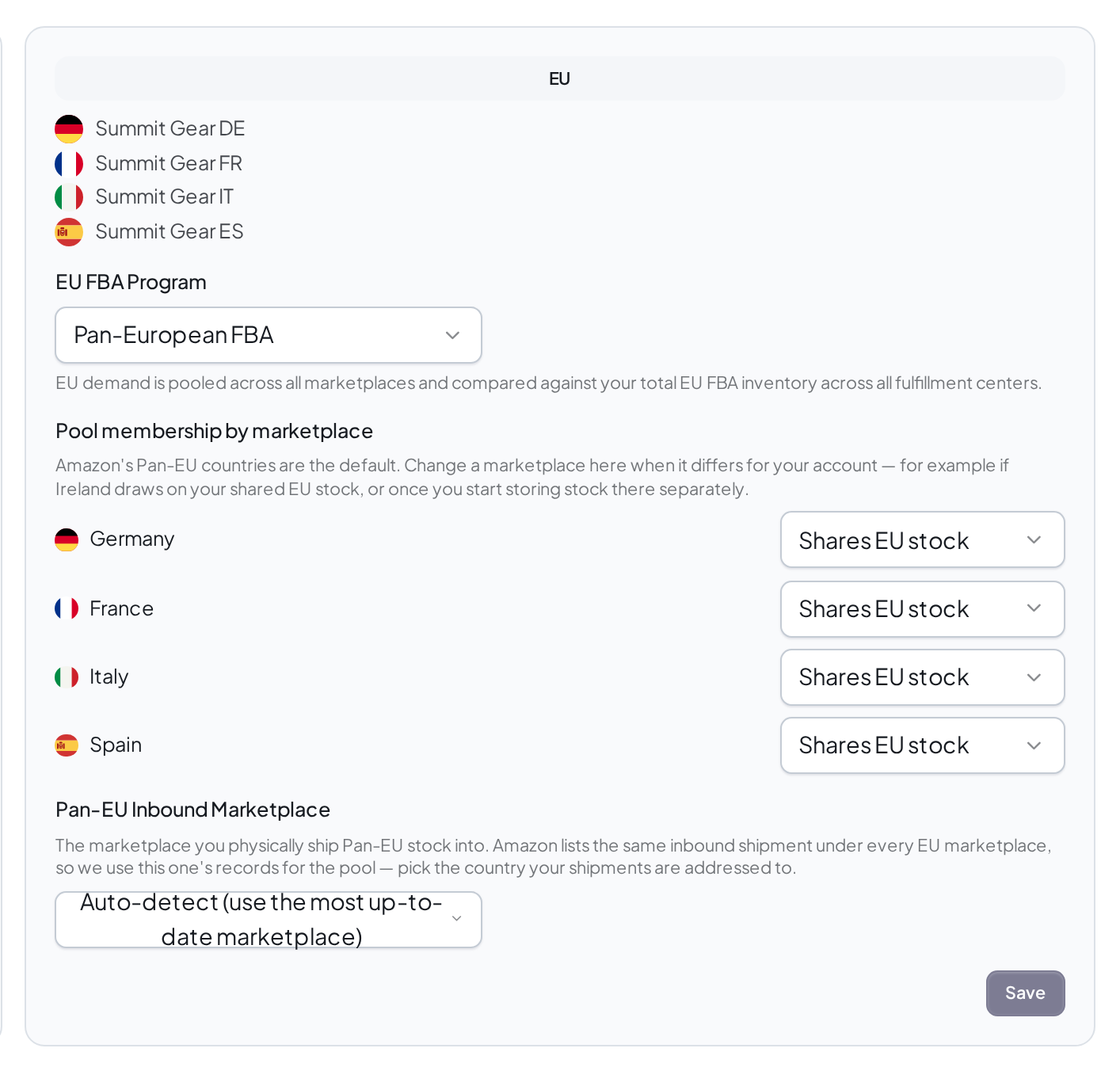
Amazon's own Pan-EU country list is the starting point, so most sellers never touch these rows. Change one when your account differs from that list. Ireland is the usual example, because it is not on Amazon's default list but many sellers do serve it from shared EU stock. The reverse also happens once you start storing stock in a country separately.
Middle East
The MENA card controls MENA Remote Fulfillment, where Amazon ships your UAE (amazon.ae) and Saudi Arabia (amazon.sa) orders out of your UK FBA inventory.
Set MENA Remote Fulfillment to Enabled if that is how your account works, and UAE and Saudi demand is pooled into your UK restock calculations.
The UK is not part of Pan-EU. It sits on the MENA card as the inventory hub for the Middle East marketplaces, which is why you can run Pan-European FBA and MENA Remote Fulfillment at the same time without them clashing.
Marketplaces with no program
Amazon's cross-border programs each cover a fixed list of countries, and some marketplaces are on none of them. Türkiye, Japan, and Australia are the common ones.
Those marketplaces appear on a card badged Independent with no dropdown to set, because there is no program to choose. Each one is restocked separately using only its own FBA inventory. The card is there so you can see the marketplace is connected and accounted for, rather than wondering why it is missing from this page.
Saving a card
Click Save on the card you changed. Every marketplace that card covers is updated together, which is what keeps one seller account on a single consistent program.
Saving starts a forecast recompute so your reorder recommendations are re-pooled with the new setting. This one can take a few minutes, because changing a program changes which marketplaces share stock and every affected product has to be recalculated.
Disabled sales channels
A disabled sales channel does not appear in the MCF or Cross-Border FBA Programs sections. Disabling a channel takes it out of your demand history, forecasts, and reorder recommendations, so changing its settings while it is off would not affect any number Profit Hawk shows you.
Its saved settings are kept. Re-enable the channel and it returns to this page with its own settings and its account's cross-border program still applied.
A few related points:
- Only account admins and owners can enable or disable a sales channel, from the actions menu on the Sales Channels page
- A channel showing a connection error still appears here, because its settings apply again as soon as you reconnect it
- If every one of your sales channels is disabled, both sections say so rather than telling you no accounts are connected
Common questions
Related
How Forecasting Works
What Profit Hawk does with these settings to produce a demand forecast.
Product Settings
Override the coverage defaults for an individual product.
Replenishment Recommendations
How the resulting reorder and transfer quantities show up in the app.
Forecast Looks Wrong
Diagnose a forecast that does not match what you expect.