

Linking Shipments to an Order
Connect the FBA and AWD shipments you already created in Seller Central to a purchase or transfer order, and track how much of the order is already on its way.
When you build the inbound shipments for an order in Amazon Seller Central, you can link them back to the matching purchase or transfer order in Profit Hawk. The order then tracks its inbound coverage: how many of the units you ordered are already in a shipment, and how many are still to go.
The Shipments tab
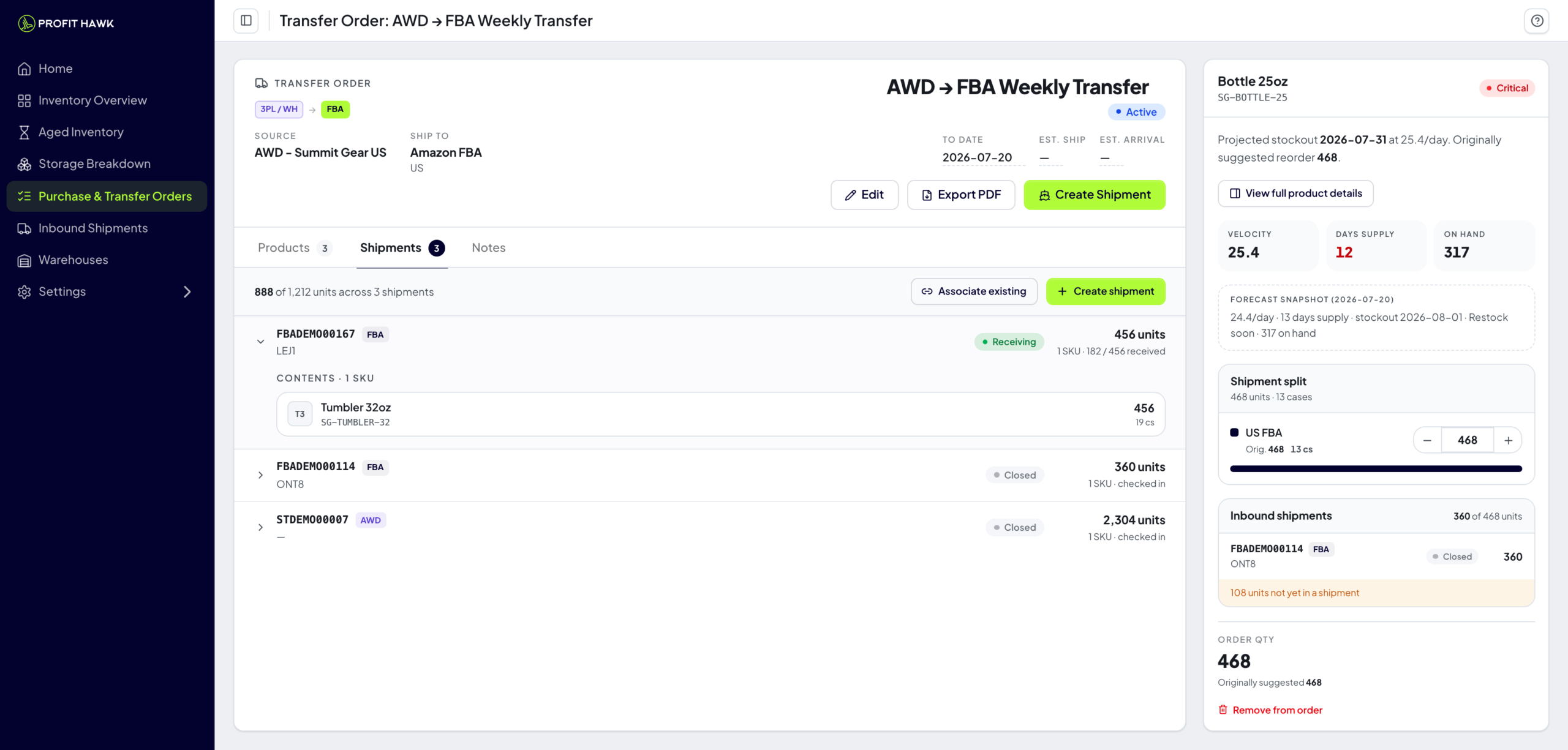
Every purchase and transfer order document has a Shipments tab, alongside the line items. It has two parts:
- A coverage summary at the top, reading "X of Y units across N shipments". This is how many of the order's units are already covered by a linked shipment.
- The list of linked shipments, newest first. Each row shows the shipment ID, an FBA or AWD badge, its status (Working, Shipped, In transit, Receiving, Closed, or Cancelled), its destination, and its unit count.
Click any shipment row to expand its Contents, the per-SKU breakdown (product, SKU, units, and case count) of what that shipment carries.
Linking works with shipments you have already created in Amazon Seller Central, both FBA inbound shipments and AWD shipments. Creating a brand-new shipment straight from this tab is coming soon.
Linking shipments to the order
Open the order's Shipments tab
Open the purchase or transfer order, then switch to the Shipments tab. Before anything is linked, the tab reads "No inbound shipments linked yet".
Click Associate existing
Profit Hawk opens the Associate inbound shipments window, listing the shipments that could belong to this order.
Review the suggested shipments
By default the window shows Only suggested shipments: unlinked FBA and AWD shipments that share at least one SKU with the order and were created within 7 days before to 14 days after the order's estimated ship date. That window is a starting point, not a hard rule. Turn Only suggested off to see every eligible shipment, grouped into Suggested and Other eligible.
Only shipments that share a SKU with the order appear. Routing and destination are not required to match, so a shipment can be a candidate even when its destination differs from the order's.
Find the shipments you want
Use the search box to filter by shipment ID or destination. Select the shipments to link with their checkboxes, or use Select all. As you select, the footer shows how many shipments and how many on-order units you are about to add.
Associate them
Click Associate, which shows the count of shipments you selected. The shipments move into the order's linked list, and the coverage summary updates.
Activating a draft order
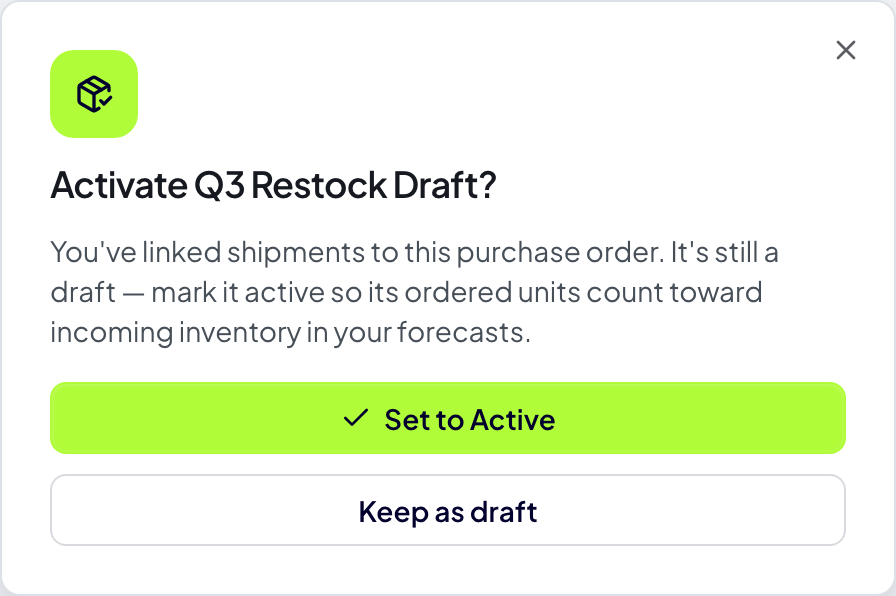
If you link shipments to a draft order, Profit Hawk asks whether to set the order Active, the same prompt you get when you export a draft's PDF. An Active order counts as incoming inventory in your forecasts. Keep it a draft instead if you are still preparing the order.
How coverage is counted
Coverage answers one question: of the units on this order, how many are already in a shipment?
- Only the on-order SKUs count. A linked shipment can carry other SKUs that are not on this order, and those extra units are left out of the coverage total.
- Coverage is counted per product and capped at the quantity you ordered, so over-shipping one product never hides another product that has nothing inbound yet.
- Cancelled, voided, deleted, and errored shipments do not count toward coverage, even when they stay in the list.
Per-line coverage
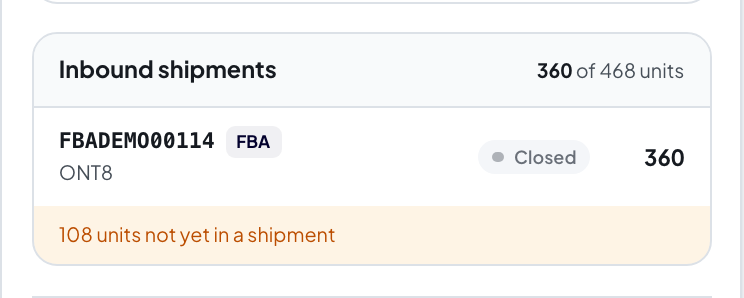
Open a line's detail panel to see coverage for that single product. The Inbound shipments section lists the shipments carrying that product and how many units each one contributes. When some of the ordered units are not in any shipment yet, a strip shows how many are not yet in a shipment, so you can see at a glance what is still left to ship. A product with no linked shipment shows "Not in any inbound shipment yet".
Common questions
Related
Creating Purchase Orders
Build the purchase order these shipments fulfill.
Creating Transfer Orders
Track inbound coverage on transfers of your own stock into FBA.
Inbound Shipments
See and manage every FBA and AWD shipment across your account.
Amazon Warehousing & Distribution (AWD)
How Profit Hawk syncs your AWD shipments and inventory.