

Update Warehouse Stock from a Spreadsheet
Export an external warehouse's inventory to Excel, then import the file back to overwrite quantities or receive new units.
Counting a 3PL's stock one cell at a time gets old fast. Export an external warehouse to Excel, edit the quantities in the spreadsheet, and import the file back to update every product at once. Use it for a cycle count, a fresh stock take, or a shipment that just arrived.
Import and export both live on the warehouse's own page, so the file is always tied to a specific warehouse and there is nothing to pick from a list.
Before you start
You need an external warehouse already set up. See External Warehouses if you have not added one yet.
AWD warehouses can be exported but not imported. Those stock levels come from Amazon and are updated automatically, so Profit Hawk does not let you change them by hand. See Amazon Warehousing & Distribution (AWD).
Export your warehouse inventory
Open the warehouse
Go to Settings > Warehouses and click the warehouse you want to export.
Click Spreadsheet, then Export to Excel
The Spreadsheet menu sits above the inventory table. The file downloads straight away.

The export covers the products in that warehouse, not your whole catalog, and it includes products currently sitting at zero. Archived products are left out, matching the rest of Profit Hawk.
What is in the file
Three columns, one row per product:
| Column | What it does |
|---|---|
| SKU | Identifies the product. This is what the import matches on. |
| Title | Your product nickname, for reading. The import ignores it. |
| Quantity | The units on hand. This is the column you edit. |
SKU and Title are shaded gray as a reminder that editing them does nothing useful. The sheet is not locked, so you can still sort, filter, and copy whole rows.
The file also carries a hidden tag naming the warehouse it came from. If you import it into a different warehouse, Profit Hawk warns you before anything is applied.
Export first even when you plan to build the file yourself. Starting from the real export means the columns and SKUs are already correct.
Import a file
Choose what the import should do
Open the warehouse, click Spreadsheet > Import from Excel, and pick Overwrite quantities or Receive units. The two options are explained below.
Upload the file
Drag your .xlsx file onto the drop zone, or click to browse. Only .xlsx files are accepted.
Review, then import
Profit Hawk checks the file against the warehouse and shows you exactly what will change before anything is written. Read the summary, then click the Import button to apply it.
Overwrite quantities, or receive units
This is the one decision that changes the outcome, so it comes first.
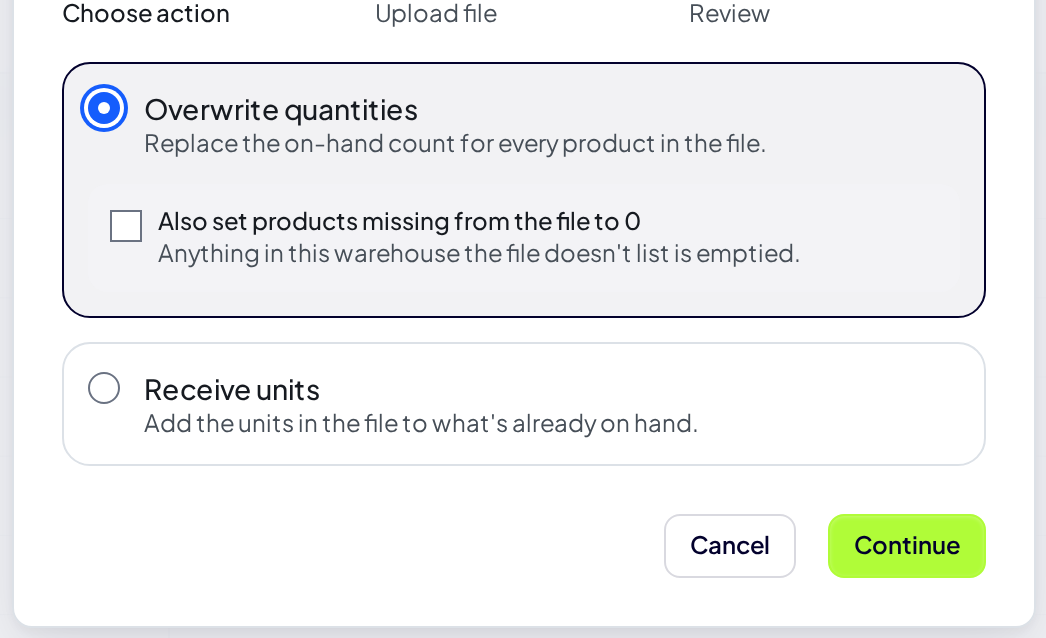
Overwrite quantities replaces the on-hand count for every product in the file. A row reading 40 leaves that product at 40, whatever it held before. Use it after a physical count, when the spreadsheet is the truth.
Receive units adds the numbers in the file to what is already on hand. A row reading 40 against a product holding 60 leaves it at 100. Use it when a shipment lands and the file is a packing list rather than a stock position.
Negative numbers are allowed under Receive units, so you can book a correction or a withdrawal. If a row would take a product below zero, that row is rejected and named in the review step rather than being rounded up to zero.
Emptying the products your file leaves out
Under Overwrite quantities there is a checkbox: Also set products missing from the file to 0.
- Off (the default) leaves anything the file does not mention exactly as it is. Safe for a partial count, or a file covering one shelf.
- On empties every product in the warehouse that the file does not list. Use it when the spreadsheet is a complete stock take and anything missing from it genuinely has none left.
With the checkbox on, a short file empties everything it leaves out. The review step tells you how many products would be emptied before you commit, and Profit Hawk warns you if the file was exported from a different warehouse. Read both.
Products your file names are never emptied by this checkbox, even when their row could not be imported. A typo in a quantity gets you an error on that row, not a silently emptied SKU.
Products that are not in the warehouse yet
A SKU that exists in your catalog but is not yet in this warehouse gets added, in both modes. You do not need to add products first.
A SKU that does not exist in your catalog is rejected. Create the product first, then import again.
Reading the review step
Nothing is written until you click Import. The review step is generated by running the import for real without saving it, so what it shows is what you get.
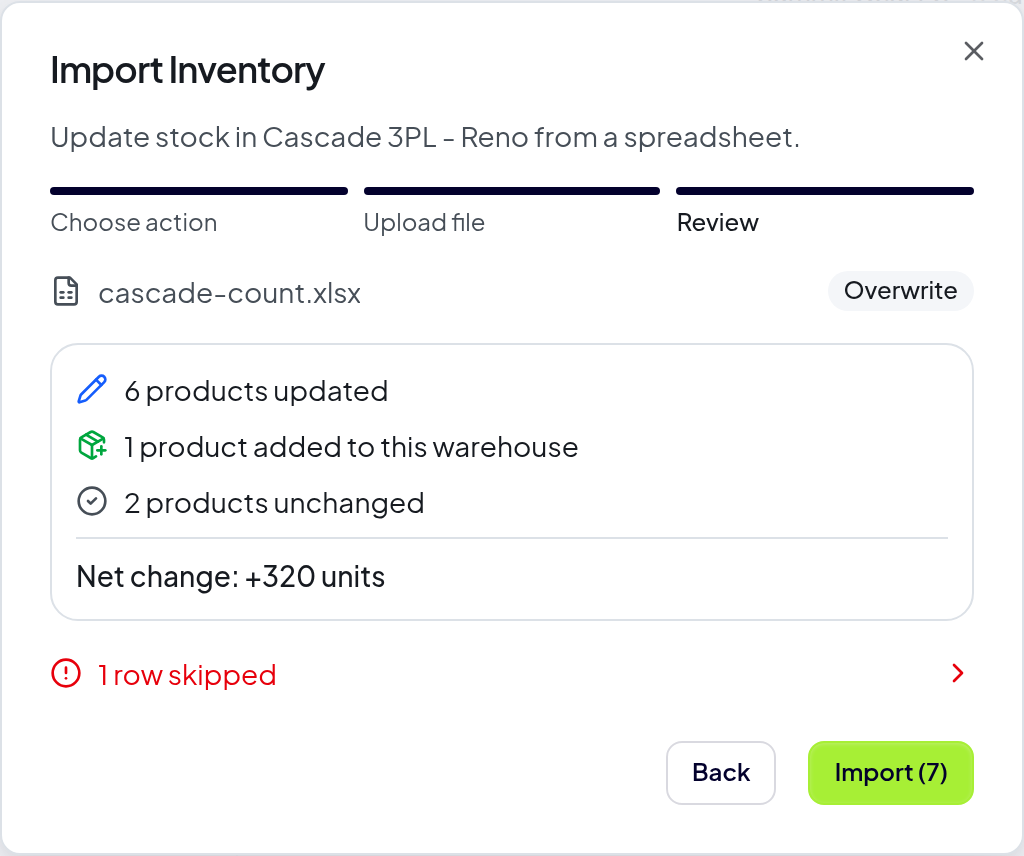
It reports how many products will be updated, added, emptied, or left unchanged, plus the net change in units. Rows it cannot import are listed individually with the reason:
| Message | What to do |
|---|---|
| No SKU in this row | Fill in the SKU, or delete the row. |
| Quantity must be a whole number | Remove units, decimals, or stray text from the cell. A cell reading "12 cases" is not read as 12. |
| No product with this SKU | Create the product in Profit Hawk first. |
| This product is archived | Set it back to Active in Product Settings. |
| This SKU already appears on row N | Combine the duplicate rows into one. |
| Only N on hand, this row would leave... | Under Receive units, the subtraction goes below zero. Check the number. |
Skipped rows do not block the rest of the file. Fix them and import again, or import what is valid and deal with the rest afterwards.
If the warehouse changes while you are reviewing, Profit Hawk stops, refreshes the numbers, and asks you to confirm again. It never applies a plan built from stale counts.
If an import fails part-way
Retrying is safe. Profit Hawk records each import as it applies it, so a retry of an import that already went through is recognized and reported as Already imported rather than being applied a second time. A receive import cannot add the same shipment twice.
Limits
A single file can carry up to 25,000 rows, and a warehouse holding more than that cannot be exported.
Splitting a large file into parts is not a safe workaround: with Also set products missing from the file to 0 turned on, each part would empty the products listed in the others. If you are running into the limit, contact support.