

Inventory Health & Alerts
Understand the urgency, days of supply, and alert badges Profit Hawk uses to flag products that need attention.
The Inventory Health columns and alert badges on the Inventory Overview tell you, in plain language, which products are running low and what action to take. This page explains how each metric is calculated and what each urgency level means.
Inventory health columns
The Inventory Health column group on the Inventory Overview shows five metrics per product:
| Column | What it shows |
|---|---|
| Velocity | Average daily sales rate, in units per day. Calculated from your sales history with weighting based on the product's velocity profile (Responsive, Balanced, Stable, or Custom). |
| Days of Supply | How many days your current inventory will last at current velocity. If you have 300 units and sell 10 per day, you have 30 days of supply. |
| Stockout Date | The projected date when a product runs out, based on velocity and current stock plus inbound inventory. |
| Urgency | A status label combining velocity, days of supply, and lead time to tell you whether action is needed. See the urgency levels below. |
| Next Action | The recommended next step (for example, "Reorder by Apr 18" or "Transfer 240 units to FBA"). |
These columns can be scoped to a specific inventory pool so you can see health for the US separately from the EU, for example.
How velocity accounts for stockouts
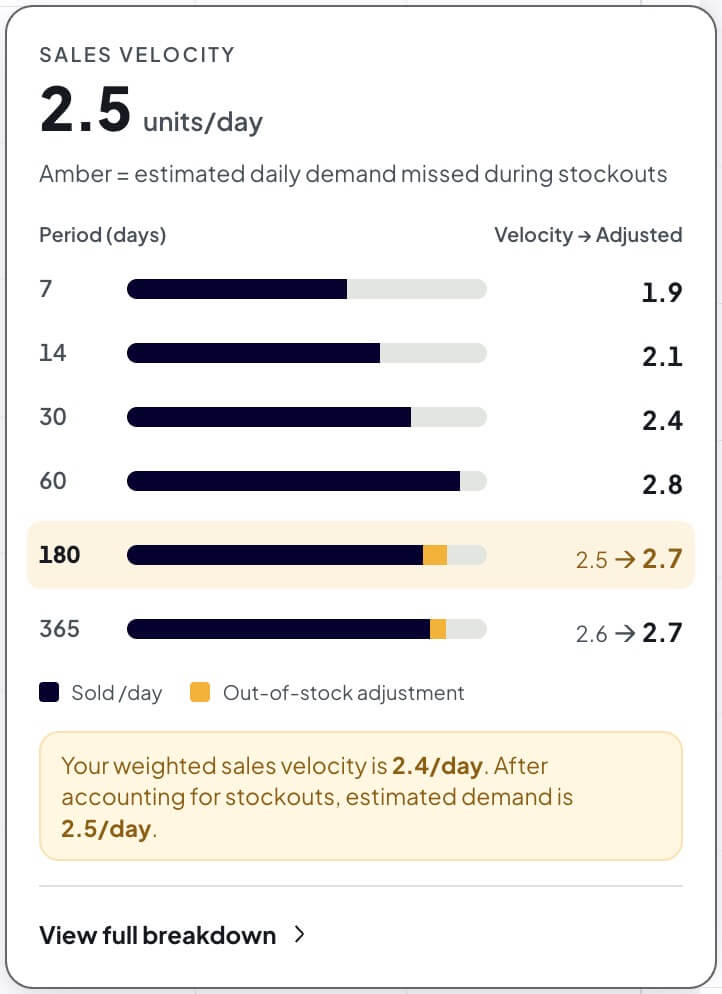
The Velocity number is not just what sold. It is your estimated daily demand after accounting for the days a product was out of stock, so a product that sold out does not look slower than it really is.
Hover the Velocity value on any row to open the breakdown. The card shows your daily sales rate for six time windows (7, 14, 30, 60, 180, and 365 days), along with how much each window counts toward the total.
Each window's bar is split into two parts:
- Sold per day (navy) is what actually sold in that window
- Out-of-stock adjustment (amber) is the estimated daily demand missed while the product was out of stock
Under the windows, a short calculation shows how they become the headline: your weighted sold rate, then demand missed in stockouts, then seasonality removed, then the adjusted velocity the forecast uses. Each step appears even when it changes nothing, so you can see that stockouts and seasonality were both checked.
The headline at the top is that adjusted velocity, blended across all six windows. Click View full breakdown to open the product's full velocity and forecast detail, where the same calculation is shown per window.
For why the headline usually differs from what you sold, see How Forecasting Works.
Urgency levels
Profit Hawk classifies each product into one of five urgency levels:
| Urgency | Meaning |
|---|---|
| Critical | Stock will run out before a new order can land. Action is needed immediately. |
| Soon | Stock will run out within the lead-time window if you do not order in the next few days. |
| Planned | A reorder is coming up but you still have time. Plan it into your normal cadence. |
| OK | Inventory is healthy. No action needed right now. |
| Not Needed | Forecasted demand is low enough that no replenishment is required (for example, archived or seasonal products in the off season). |
Urgency is calculated using your forecasted daily demand, current inventory, inbound inventory, total lead time, and your min/max days of stock targets from product settings.
Urgency is computed per pool. A product can be Critical in the US and OK in the UK at the same time. The row-level urgency on the Inventory Overview is the worst urgency across all that product's pools.
Alert badges
The Alerts column on each row shows colored badges that summarize the worst urgency for each pool. There are three levels:
| Badge | Color | Trigger |
|---|---|---|
| Action Needed | Red | A pool has Critical urgency |
| Restock Soon | Orange | A pool has Soon urgency |
| Restock Planned | Amber | A pool has Planned urgency |
Each badge includes the pool's short label (US, NARF, Pan-EU, etc.) so you can see exactly where the issue is. Pools that are OK or Not Needed do not produce a badge.
Use the alert badges as a fast scan signal. If you see a row of red badges, that product needs attention right away regardless of what other columns say.
How replenishment math works (quick version)
Profit Hawk uses three numbers to decide urgency and recommend reorder quantities:
- Forecasted daily demand -- from your historical sales data, weighted by your velocity profile and adjusted for seasonality if you have set a primary keyword
- Total lead time -- the sum of your production, shipping, customs, ground, and prep lead times from product settings
- Min and max days of stock -- the floor and ceiling for how long you want inventory to last
The reorder point is calculated as forecasted demand × lead time + safety stock. Once projected inventory drops below that point, urgency moves to Soon or Critical depending on how close you are to a stockout.
For the full mechanics, see How Forecasting Works and Safety Stock.
Filtering by health
Every Inventory Health column can be filtered. Common filters:
- Urgency is Critical or Soon -- show only products needing attention
- Days of Supply is less than 30 -- show products running low regardless of urgency
- Stockout Date is before [date] -- show products at risk in a specific window
You can also scope these filters to a specific pool to focus on one market.
Learn more: Filtering & Searching
Why a product might show "Not Needed"
If you see "Not Needed" on a product you expect to reorder, check:
- Is the product Active? Archived products are excluded from replenishment.
- Does it have a velocity? Brand-new products with no sales history have zero velocity, so no reorder is calculated until sales start.
- Are days of stock targets reasonable? If max days of stock is set very low and you already have plenty of inventory, no reorder is needed yet.
Related
How Forecasting Works
The math that drives velocity, demand, and replenishment.
Safety Stock
How Profit Hawk calculates the buffer that prevents stockouts.
Product Settings
Configure lead times, days of stock targets, and velocity profiles per product.
Identify Reorders
A walkthrough for using urgency to plan supplier orders.